 Resale Record
Sales
Record and review your sales: what you earned after fees, shipping and cost, shipping status, refunds, trends and how to add a sale by hand.
The Sales tab lists your sales, with each one's status. At the top, the month card shows the gross, the profit, and where the money went.
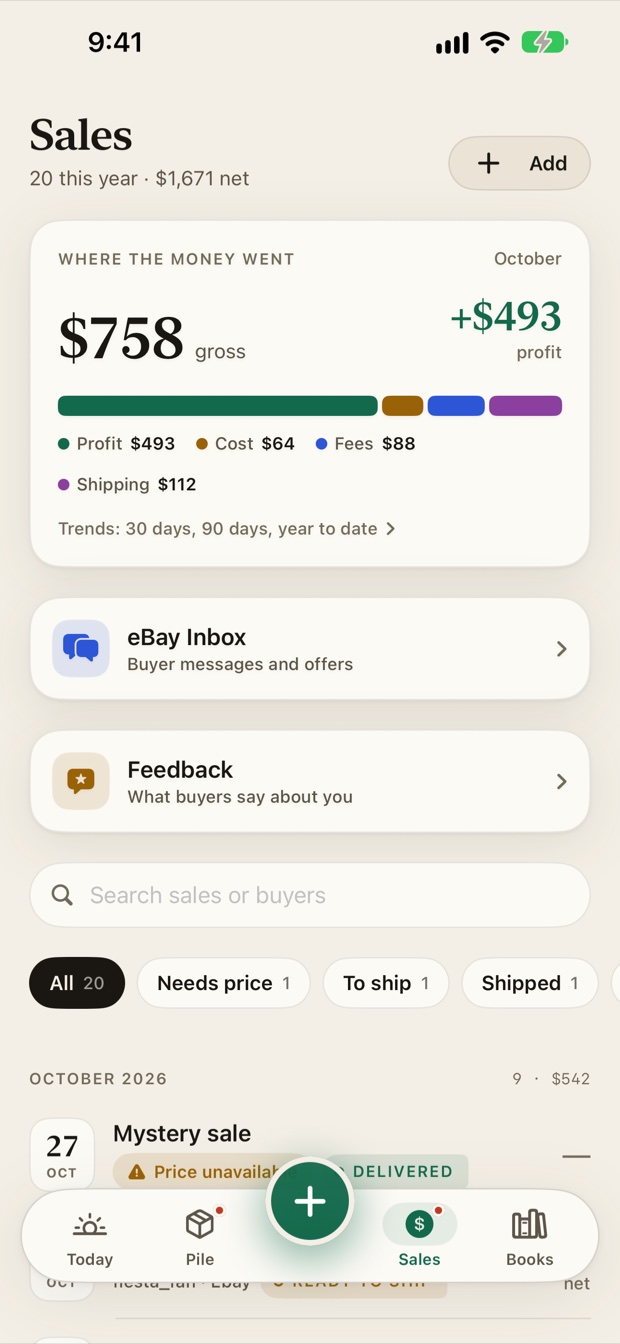
Where the money went#
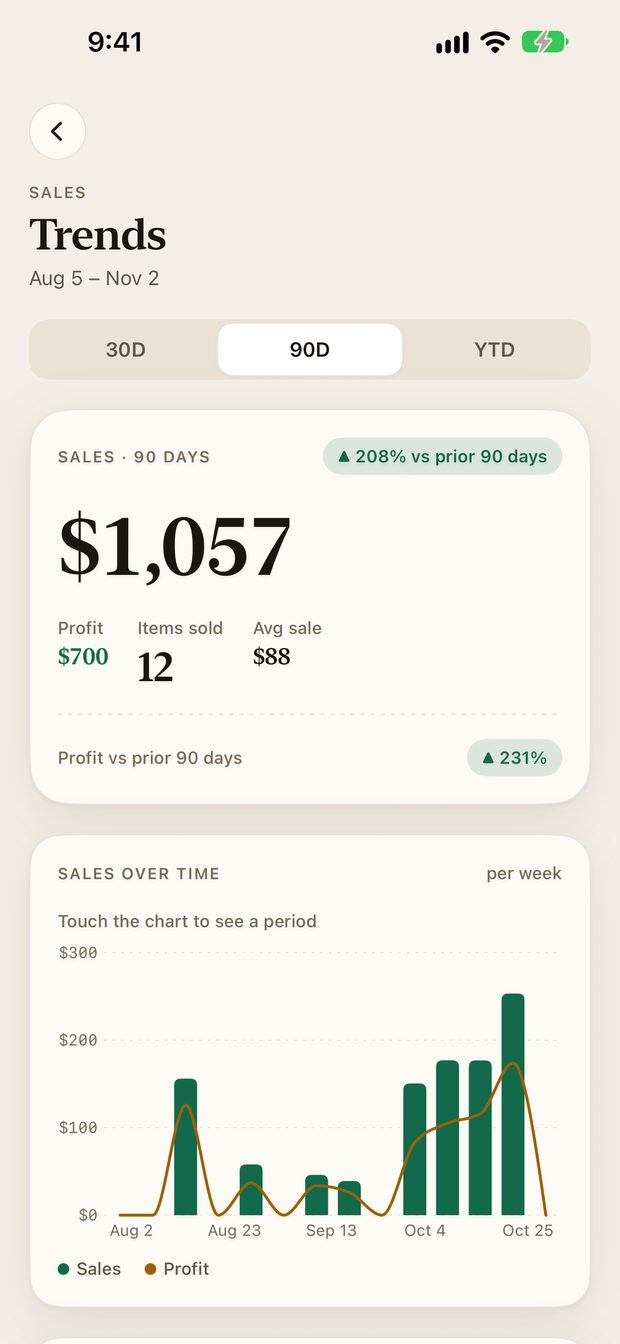
The month card breaks a sale total into profit, cost, fees and shipping, so you can see how much of the gross you kept. Tap Trends for 30 days, 90 days or the year to date.
Filter your sales#
Use the chips under the search bar: All, Needs price, To ship and Shipped. Search by item or buyer.
A single sale#
Tap a sale to open it.
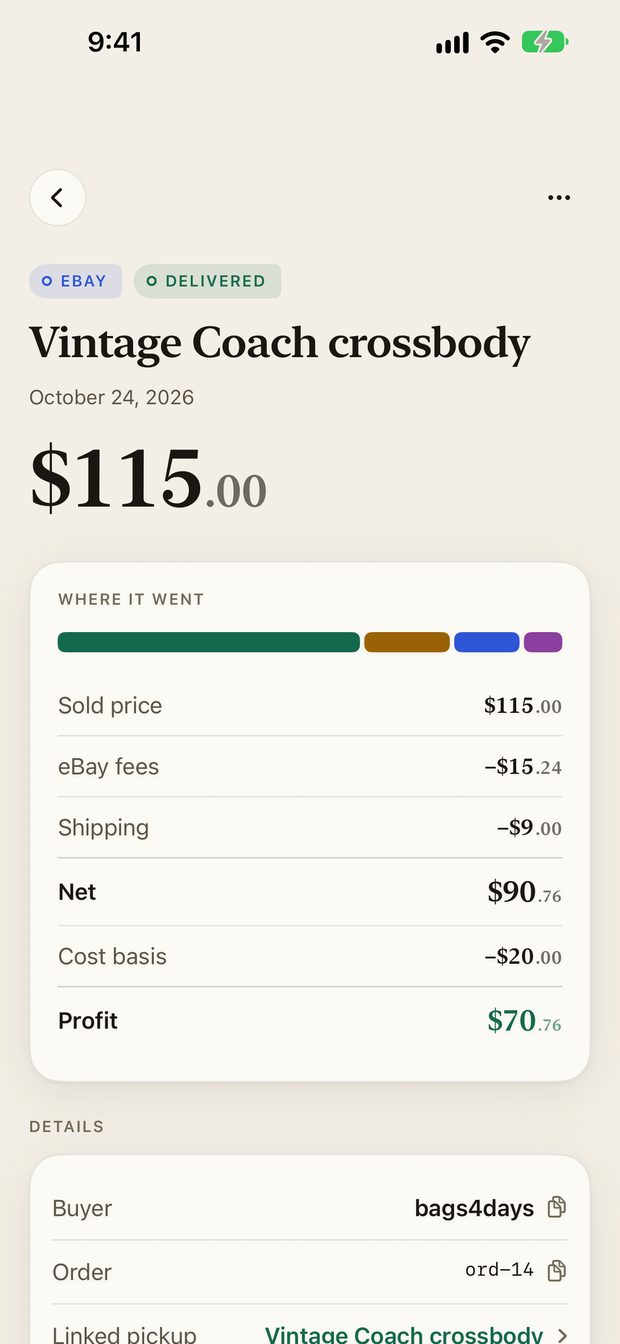
The screen shows the sold price, the marketplace fee, shipping, net, your cost basis and the resulting profit. Below that are the buyer, the order number and the pickup it is linked to. Use the tracking link to open the carrier's own tracking page.
Add a sale by hand#
Sold something off eBay? Tap Add on the Sales tab, or Capture and then Sale.
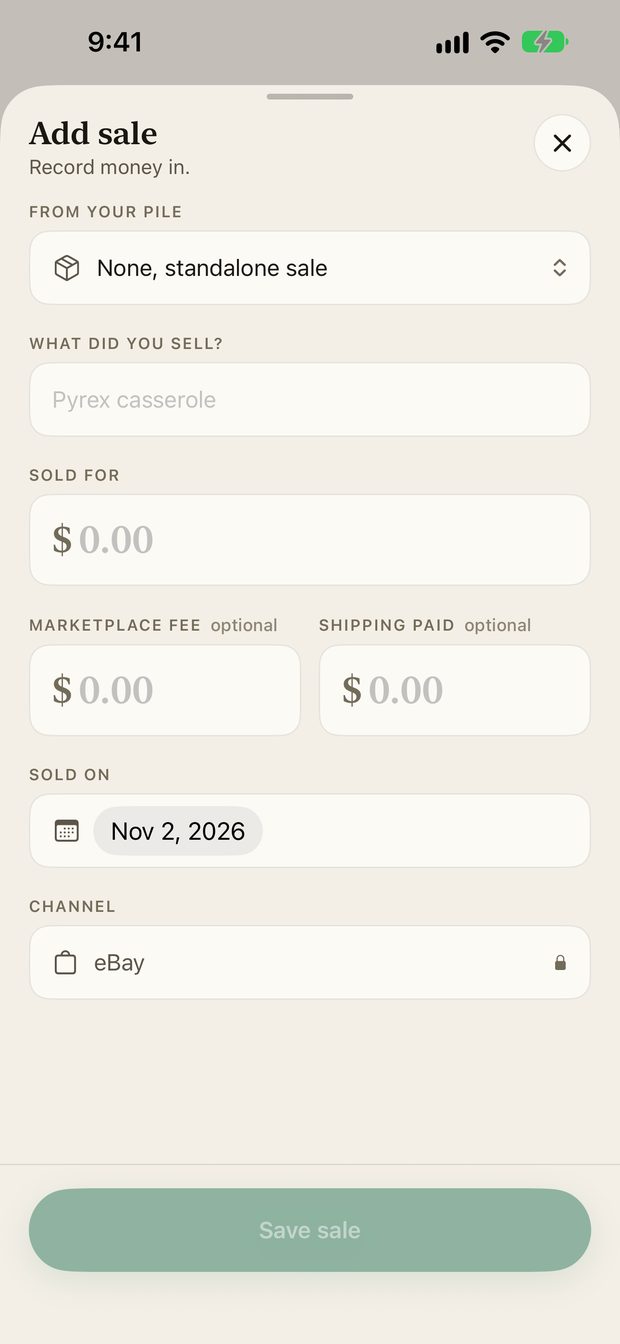
- Pick the item from your pile, or choose None, standalone sale.
- Enter what it sold for.
- Add the marketplace fee and shipping you paid, if any.
- Check the sold date and channel, then tap Save sale.
Refunds#
If a buyer is refunded, record it on the sale with a refund amount and a note. Refunds are subtracted in your year totals and on the Schedule C.
eBay sales#
If eBay is connected, your eBay orders appear here as sales. See Connect eBay and Shipping labels.
Something missing or out of date? Email [email protected] and tell us what you expected to see.